
Starbucks TeamWorks App: Login, Schedule & Features
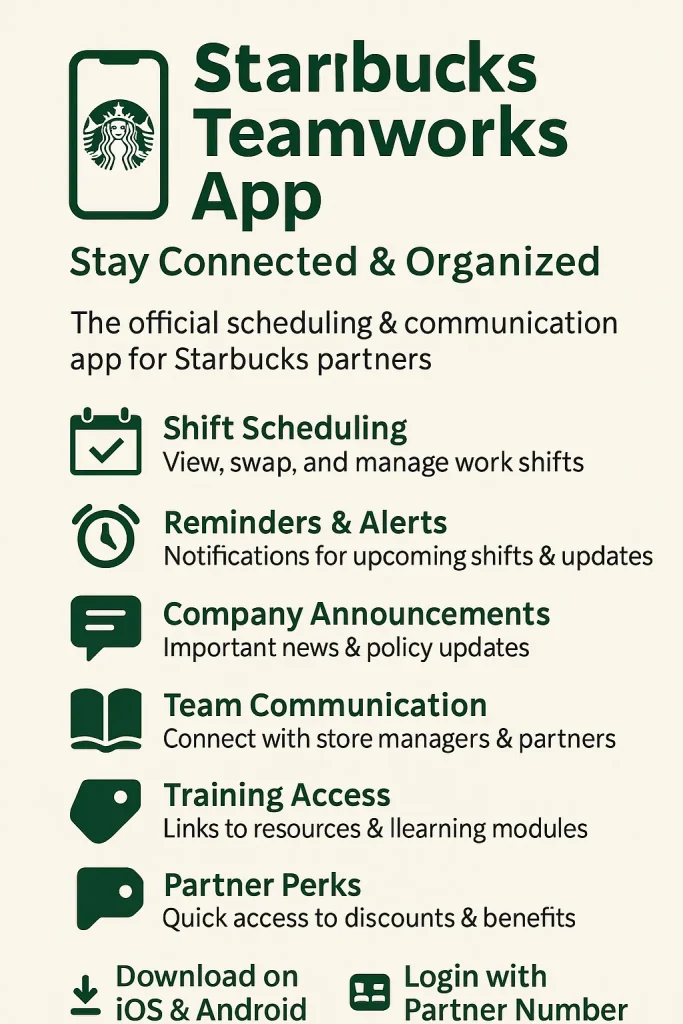
Starbucks partners often struggle with paper schedules or word-of-mouth updates, which can lead to confusion and missed shifts. The Starbucks TeamWorks app solves this problem by keeping everything in one place.
With the app, you can quickly check your Starbucks schedule, swap shifts, request time off, and stay updated—all from your phone. It’s simple, fast, and available anytime, anywhere.
All Features of the Starbucks TeamWorks App
View and Manage Your Schedule
See your weekly shifts right from your phone no need to check the breakroom wall.
You can also request time off, grab open shifts, or swap with teammates.
The schedule updates in real time, so nothing gets missed
Shift Swapping Made Simple
Need to switch a shift? Submit a swap request through the app.
Your manager gets notified and can approve it directly.
It keeps things fast, clean, and organized
Direct Messaging With Your Team
Chat with your coworkers and manager without using a separate app.
Get quick updates, reminders, and shift alerts in one place.
This helps teams stay on the same page
Daily Tasks and To‑Dos
Check off tasks assigned for your shift, like cleaning or setup.
The app keeps track so nothing falls through the cracks.
It’s like a digital checklist for your workday.
Training and Company Resources
Access training materials, policies, and company news anytime.
Whether you’re new or prepping for promotion, it’s all there.
You don’t have to ask for a binder or printouts.
Custom Settings and Notifications
Set your availability, turn on shift reminders, or pause alerts when off.
You’re in control of how and when you get updates.
No more surprise shifts or missed changes
Calendar Sync
Connect your work schedule to your personal calendar app.
It works with Google, Apple, and Outlook calendars.
Your work and life can finally run in sync.
Access to Pay & Benefits (in some stores)
Some locations let you check pay info, benefits, and PTO right in the app.
You may even track things like tuition help or health insurance.
It depends on your store and region.
Everything in One Place
TeamWorks pulls together your schedule, messages, tasks, and training.
You don’t need five apps or sticky notes anymore.
It’s a full-on partner dashboard in your pocket.
How to Download & Use the Starbucks TeamWorks App
For Corporate Stores
If you work at a corporate-owned Starbucks, your store most likely uses the Starbucks Partner Hours app (powered by WorkJam).
Here’s how to get started:
- Open the App Store or Google Play Store on your phone.
- Search for “Starbucks Partner Hours” or “WorkJam”.
- Download the app—make sure it’s the official one with good ratings.
Once installed, log in using your Partner Number and password.
Some stores may also require a Group ID or QR code from your manager.
Ask your manager if you’re not sure what info to enter.
For Licensed Stores (Target, airport, or college locations)
Licensed stores usually use a different setup that requires two apps.
Here’s what to do:
- Download the Intelligent Hub app (by VMware).
- Use a QR code or enter the Group ID: PARTNER.
- The TeamWorks app (SBUXPartnerHrs) will download through something called AppCafé.
Not Sure Which One You Need?
If you’re unsure, don’t worry you’re not alone. Ask your manager whether your store uses Partner Hours (WorkJam) or the older TeamWorks system. They’ll guide you on which app to download and how to log in.
| Store Type | App to Download | Extra Steps |
| Corporate Store | Starbucks Partner Hours | Use Partner Number to log in |
| Licensed Store | Intelligent Hub + AppCafé | Use QR Code or Group ID = PARTNER |
| Not sure | Ask your store manager | They’ll confirm your store’s setup |
Benefits of Using the Starbucks TeamWorks App
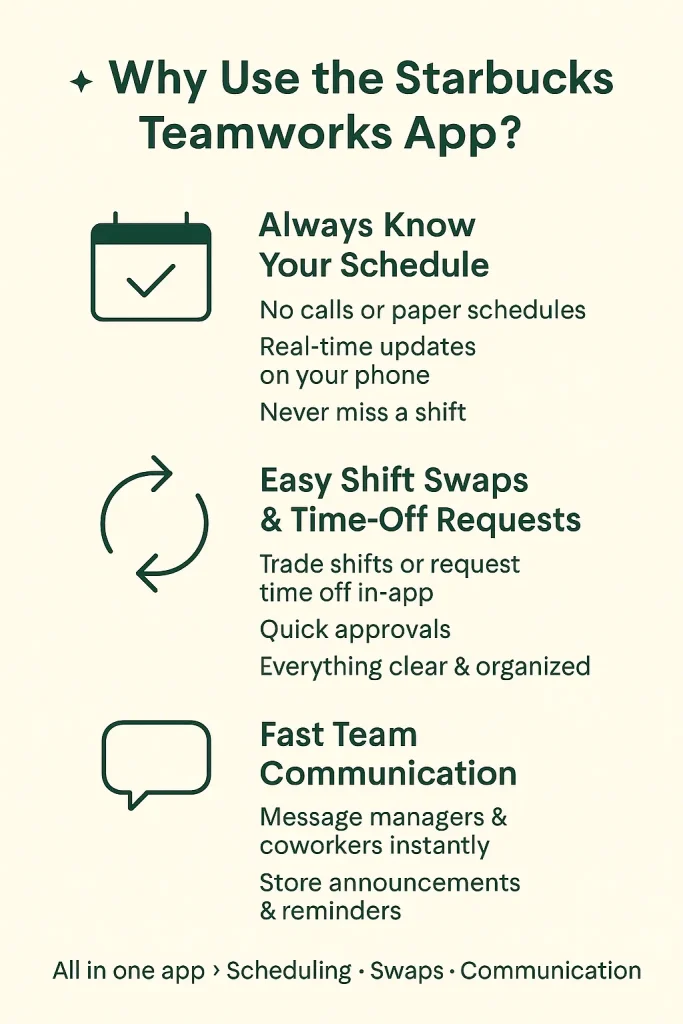
1. Always Know Your Schedule
No more calling your store or checking a printout to see when you’re working.
With the app, your full schedule is on your phone updated in real time.
You’ll never miss a shift or get caught off guard.
2. Easy Shift Swaps and Time-Off Requests
Need to trade a shift or take a day off? Do it right in the app.
Send a request, get approval, and move on—no awkward back-and-forth.
It keeps everything clear and in one place.
3. Fast Communication With Your Team
Stay connected to your manager and coworkers with built-in messaging.
Get updates, reminders, and store announcements all in the app.
No need for group texts or outside apps.
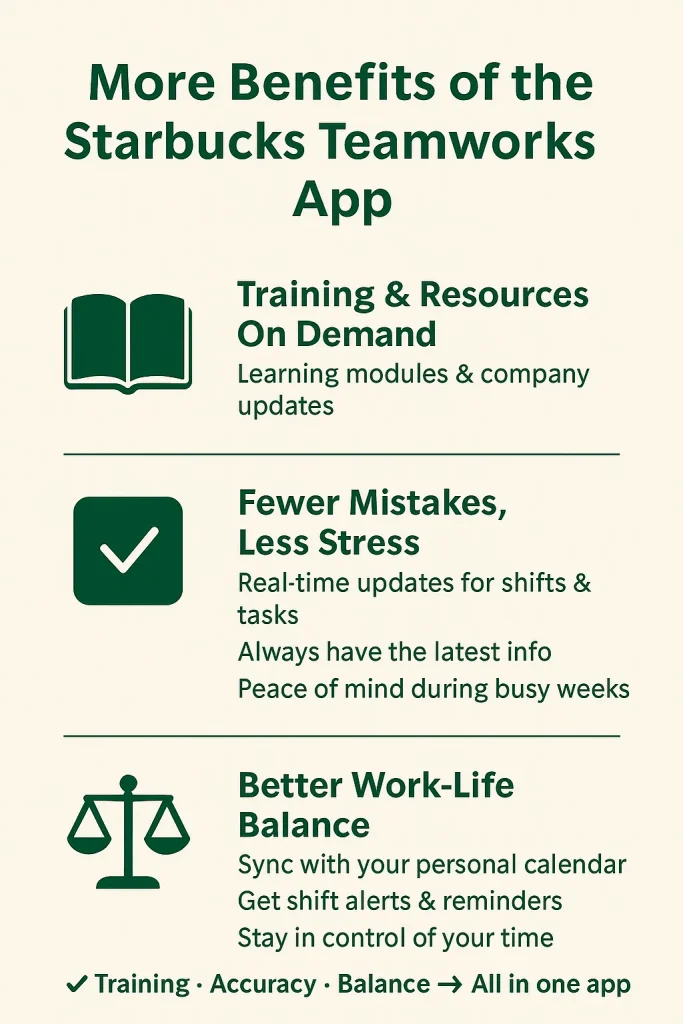
4. Training and Resources On Demand
New to the job or prepping for a promotion?
The app gives you access to learning modules and company updates.
You can grow your skills anytime, right from your phone.
5. Fewer Mistakes, Less Stress
Real-time updates mean fewer errors with shifts, coverage, or tasks.
You’ll always have the latest info without chasing anyone down.
That peace of mind makes a big difference during busy weeks.
6. Better Work-Life Balance
Sync the app with your personal calendar to plan ahead.
Get shift alerts so you’re never caught off guard.
You stay in control of your time—on and off the clock.
Common Issues with the Starbucks TeamWorks App
1. Can’t Log In
If your login isn’t working, double-check your Partner Number and password.
Make sure you’re using the latest app version.
If that doesn’t help, ask your manager or reset your password on the Partner Hub.
2. App Not Downloading
Make sure your phone has enough storage space and you’re on Wi-Fi.
Also, check if your device software is up to date.
Still stuck? Try restarting your phone and downloading again.
3. Missing Shifts or Schedule Errors
Sometimes shifts don’t appear or look wrong in the app.
Refresh the app or log out and back in.
If the issue stays, confirm with your manager—they may need to resync your schedule.
4. Notifications Not Showing
Go to your phone’s settings and check that notifications are turned on for the app.
Also, turn on push alerts inside the app settings.
If you’re still not getting updates, try reinstalling the app.
5. App Crashes or Freezes
This usually means you need an update or the app is overloaded.
Close other background apps and restart the TeamWorks app.
If it keeps crashing, delete and reinstall it fresh.
6. Using the Wrong App
Corporate stores use Partner Hours (WorkJam), licensed stores often use TeamWorks via Intelligent Hub.
Using the wrong one causes login errors or missing features.
Always check with your manager to confirm your store’s setup.
User Feedback on Starbucks TeamWorks / Partner Hours
1. Login and Scheduling Glitches
“I am struggling to gain access to Starbucks Teamworks and Partner Hub. It all started a couple weeks ago when I transferred stores and was trying to login.”
“Has anyone else had problems with Teamworks? I clearly punched in more hours than the ones marked down, and I clocked in and out with the iPad.”
These comments reflect frustrations with login issues and discrepancies between recorded hours versus actual worked time.
2. Privacy and App Permissions Concerns
“I don’t trust the app and I am a cyber security major. I would not recommend downloading it.”
“It is a PITA… it forces you to have a 4 digit passcode on both your phone and apple watch.”
“It asks for some CRAZY permissions on your personal phone for an app simply made for job communication.”
Navigating the Starbucks TeamWork App
1. Home Screen
The Home Screen is the main dashboard where you can access all essential features. From here, you can quickly check your upcoming shifts, tasks, announcements, and team communications. It serves as your hub for navigating the app.
2. Task List
To view your daily tasks, tap on the “Tasks” section from the main menu. This will show you a list of tasks assigned to you, with clear descriptions and priorities. You can mark tasks as completed as you work through them, helping you stay organized.
3. Schedule
In the “Schedule” tab, you can view your upcoming shifts and manage your availability. You’ll also be able to request time off and see any updates to your schedule in real-time.
4. Messages
The Messages section allows you to communicate directly with your team members and managers. You’ll receive important updates, direct messages, and team-wide announcements here. It’s essential for staying connected and informed.
5. Store Announcements
Access important store announcements by tapping on the “Announcements” section. Here, your managers can share updates about store operations, events, promotions, and any changes to policies or procedures.
6. Training
The Training section contains educational materials, videos, and resources to help you stay up-to-date on new products, procedures, and company policies. You can access this section whenever you need to refresh your skills.
7. Profile
To view and edit your personal details, tap on the “Profile” icon. Here, you can update your contact information, view your work history, and change app settings such as notification preferences.
How to Stay Motivated and Engaged Using Starbucks TeamWork
1. Set Daily Goals and Track Progress
The Starbucks TeamWorks app allows you to manage your tasks and view your daily responsibilities. By setting clear goals for the day and tracking your progress, you can maintain focus and feel a sense of accomplishment as you check off tasks. Completing tasks on time boosts your motivation and helps you stay productive throughout your shift.
2. Receive Real-Time Feedback
The app enables managers to give real-time feedback on your performance, whether it’s praise for a job well done or tips for improvement. Positive feedback fosters a sense of accomplishment and motivates you to continue working efficiently. Additionally, constructive feedback helps you grow in your role and learn new skills.
3. Stay Connected with Your Team
By communicating with your team through the Starbucks TeamWorks app, you can feel more connected and supported. Whether it’s sharing a quick update or celebrating a team accomplishment, staying in the loop with colleagues helps create a positive work environment. When you feel like a valued part of the team, it makes the job more enjoyable and engaging.
4. Get Recognized with Store Announcements
Managers often use the Store Announcements feature in the app to recognize achievements, share updates, and celebrate milestones. Being recognized for your hard work, whether in front of your team or through company-wide announcements, boosts morale and motivates you to continue excelling.
5. Track Your Career Growth
The app provides access to training materials, learning modules, and skill-building opportunities. By regularly engaging with these resources, you can see your own growth and development within the company. The sense of progression not only keeps you engaged but also helps you stay focused on long-term career goals at Starbucks.
6. Stay Updated on Rewards and Benefits
The app provides partners with easy access to their rewards and benefits. Whether it’s a store promotion, recognition rewards, or updates about health benefits, staying informed about available perks can increase engagement and overall satisfaction with your work.
Frequently Asked Questions
Conclusion
The Starbucks TeamWork app is a powerful tool that helps partners manage tasks, stay connected, and streamline communication across the store. Paired with other resources like the Starbucks Partner Hub and Starbucks Partner Hours, this app enhances the overall partner experience. It allows seamless access to schedules, announcements, and task lists, improving productivity and teamwork.
With the integration of Starbucks Partner Hours, partners can easily track their shifts and availability, while the Partner Hub provides access to key resources and benefits. Together, these tools ensure partners stay informed, motivated, and organized, leading to a more efficient and engaging work environment.